Creating Secrets
Creating Secrets: User-Friendly Configuration Guide
Hello! Welcome to the creating secrets section in OmniQ. This allows you to add new confidential information that your bot will use, such as keys or codes. It's like writing an important secret note for your bot. You don't need to program to do it!
How to Create a New Secret
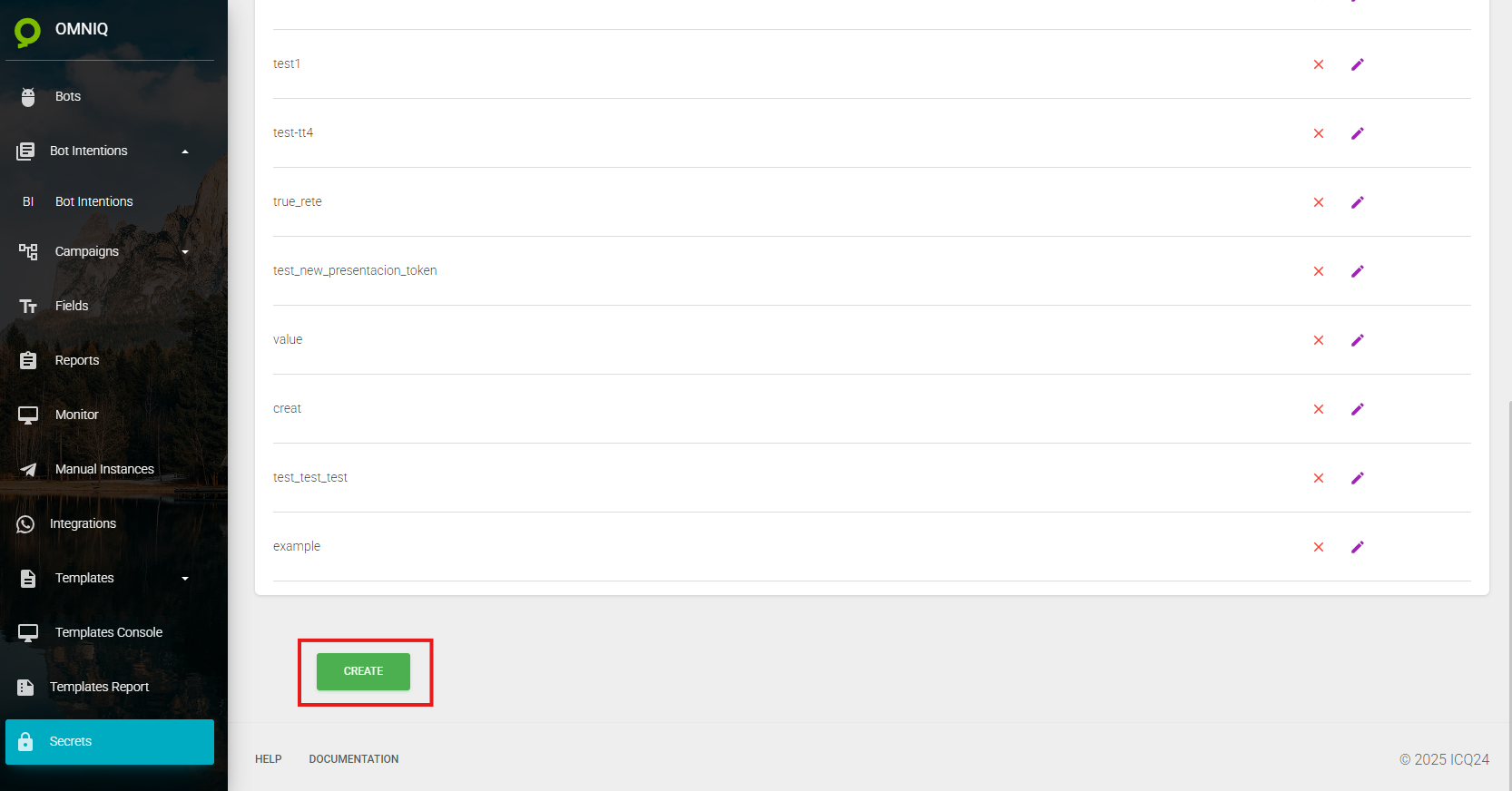
- Step 1: Open OmniQ and go to the "Secrets" screen. Click on "Secrets" in the left sidebar menu (with a white lock icon).
- Step 2: Find and click the green "CREATE" button on the secrets screen.
This will open a window to create your secret.
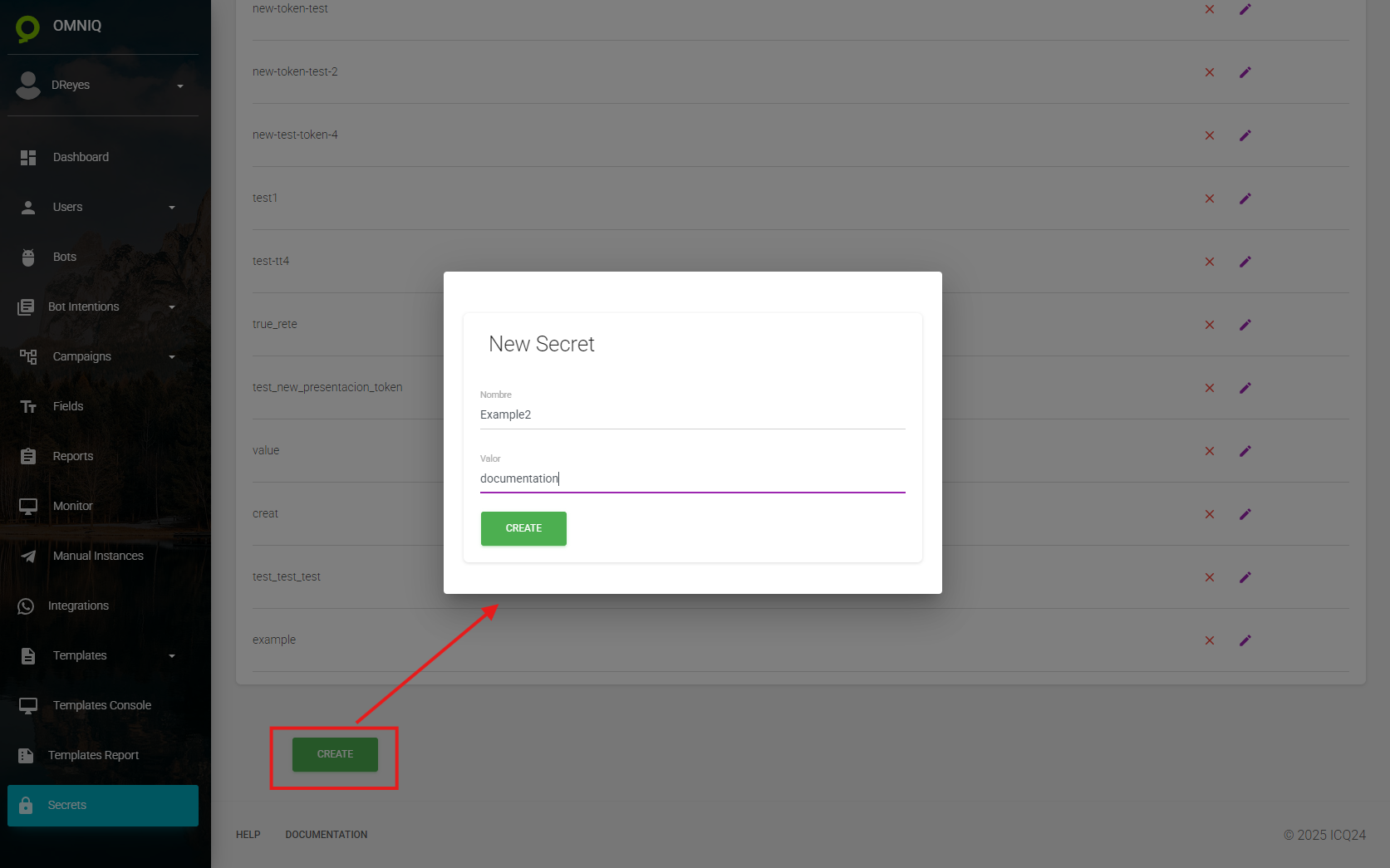
What to Do in the Creation Window
-
What they are: Enter a name (like "Example2") and a value (like "Documentation1234") for your secret.
-
What they're for: The name identifies the secret, and the value is the confidential information your bot will use.
-
How they're used: Fill in the fields, create the secret, and the bot will automatically use it securely.
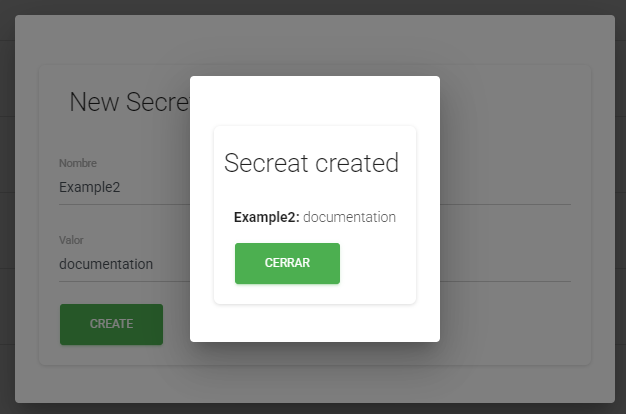
Shows a white popup window with the title "Secret created", displaying "Example2: documentation" and a green "CLOSE" button, over a dark gray background with the creation window in the background.
Practical Example
You want to create a new key:
- In "Secrets", click "CREATE".
- Type "API_KEY" in "Name" and "key123" in "Value".
- Click "CREATE".
- You see a window that says "Secret created Example2: documentation" and click "CLOSE".
Result: "API_KEY: key123" appears in your list of secrets.
Quick Tips
- Safe Name: Use letters, numbers, hyphens, or underscores, starting with letters (not numbers or special characters).
- Clear Confirmation: Check the message (as in the previous example) before closing.
Done! Now you know how to create secrets in OmniQ. Fill in the fields, create, and confirm. If something doesn't work, review or ask for help. Let's start creating secrets!