Editing Secrets
Updating or Editing Secrets: User-Friendly Configuration Guide
Hello! Welcome to the updating or editing secrets section in OmniQ. This allows you to change the value of an existing secret, such as updating a key or password. It's like correcting or improving important data that your bot uses. You don't need to program to do it!
How to Access and Edit a Secret
- Step 1: Open OmniQ and go to the "Secrets" screen. Click on "Secrets" in the left sidebar menu (with a white lock icon).
- Step 2: Find the secret you want to edit in the list and click on the purple pencil icon (edit) next to its name.
This will open a window to edit the secret.
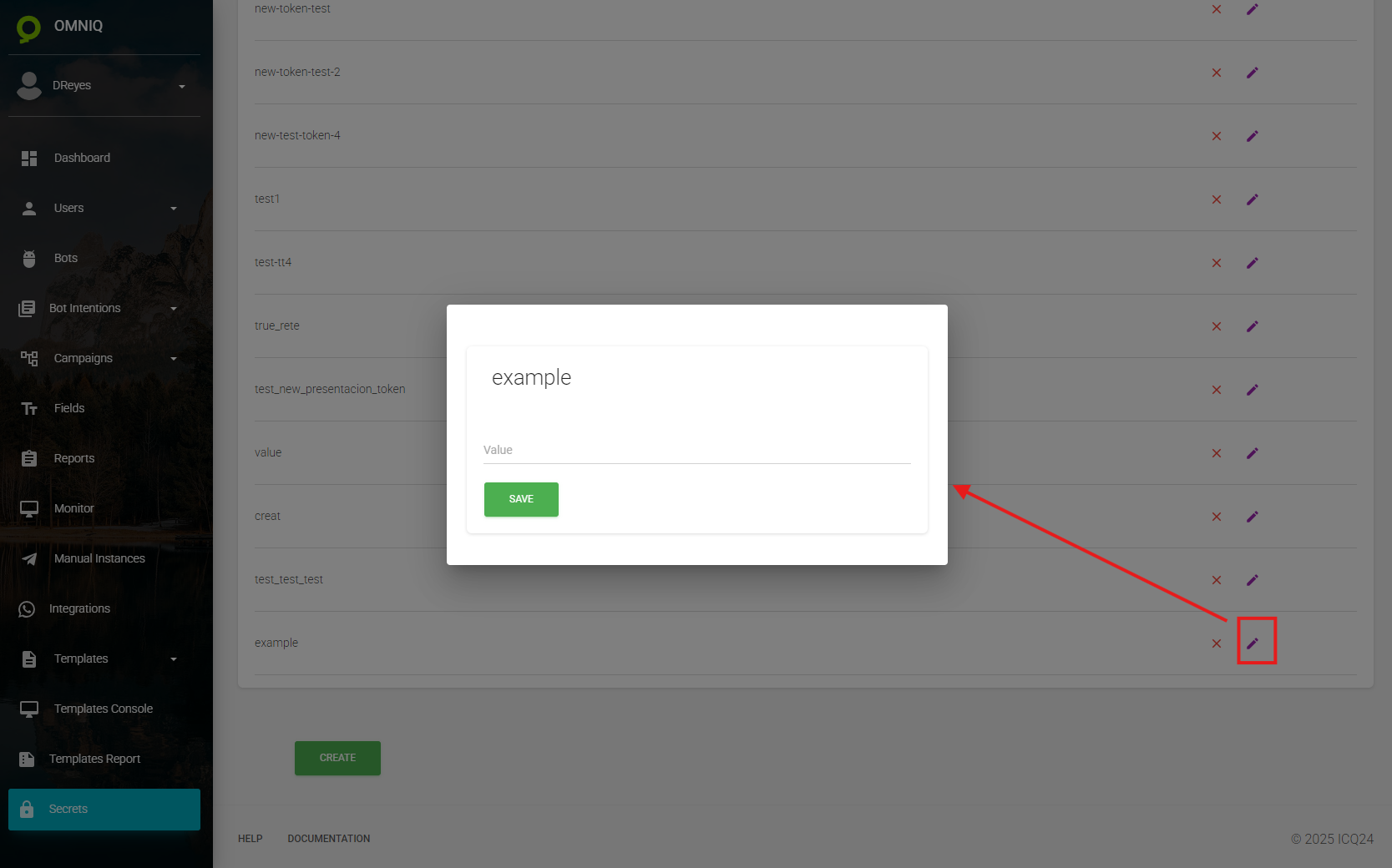
What to Do in the Edit Window
- What they are: Change the current value of the secret (like "key123" to "key456"), while keeping the name the same.
- What they're for: Updates the confidential information so your bot uses the most recent version.
- How they're used: Type the new value, save, and the bot will use it automatically.
Practical Example
You want to update a key:
- In "Secrets", click the pencil icon next to "example" (as in the secrets list).
- In the window, type "new_value" in "Value".
- Click "SAVE".
Result: The "example" secret now uses "new_value", ready for your bot.
Quick Tips
- Quick Change: You only edit the value, not the name.
- Immediate Security: The change is securely saved and used instantly.
Done! Now you know how to edit secrets in OmniQ. Find the secret, change it, save and you're done. If something doesn't work, review or ask for help. Let's start updating secrets!